
 LinkedIn
 Instagram
 WhatsApp
 Telegram
 Google Calendar
 Join Slack Community
Microsoft Graph API Email: Complete Integration Guide for Developers (2026)
The Microsoft Graph API is the unified REST endpoint for accessing Outlook and Exchange email data: read, send, search, and receive webhooks for every mailbox event. This guide walks you through OAuth 2.0 setup, live code examples, rate limits, and how to unify Microsoft Graph with Gmail and IMAP under a single SDK.
import requests
# Unipile Unified Email API
# Reads Outlook emails via Microsoft Graph

BASE = "https://api.unipile.com:13465/api/v1"
HEADERS = {
  "X-API-KEY": "YOUR_ACCESS_TOKEN",
  "Accept": "application/json"
}

def get_outlook_emails(account_id, limit=20):
    r = requests.get(
        f"{BASE}/emails",
        headers=HEADERS,
        params={
          "account_id": account_id,
          "limit": limit
        }
    )
    return r.json()["emails"]

emails = get_outlook_emails("acc_outlook_123")
for e in emails:
    print(e["subject"], e["from"])


What Is the Microsoft Graph API for Email?
The Microsoft Graph API is the unified REST gateway for all Microsoft 365 services, including email, calendar, contacts, and files. For email specifically, it exposes the /v1.0/me/messages endpoint, giving developers programmatic access to every Outlook and Exchange mailbox. It replaced legacy protocols (Basic Auth, EWS) and is now the only officially supported way to access Outlook email programmatically using OAuth 2.0.
The Microsoft Graph API for email is the RESTful interface exposing Microsoft 365 mailbox data - including messages, folders, attachments, and mailbox settings - under the https://graph.microsoft.com/v1.0/me/messages endpoint. It authenticates through Azure Active Directory OAuth 2.0, supports delegated and application permissions, and enables real-time events via change notification subscriptions (webhooks). It is the recommended replacement for all deprecated Basic Authentication flows.
Microsoft Graph API is the recommended replacement for deprecated Basic Authentication - all Outlook and Exchange email access now requires OAuth 2.0 via Graph. Basic Auth was fully retired in October 2022.
| Criterion | Microsoft Graph API | Direct SMTP / IMAP |
|---|---|---|
| Authentication | OAuth 2.0 (MSAL) | Username + password (deprecated) |
| Rate limits | 10,000 requests / 10 min per app | No standard limit (server-dependent) |
| Features | Full: read, send, search, webhooks, folders | Limited: basic send/receive only |
| Complexity | OAuth flow + Azure App Registration | Low setup, high maintenance |
| Unipile support | Native - no OAuth flow needed | Native - IMAP fallback |
Why Use Microsoft Graph API for Email Integration?
Building on Microsoft Graph gives your application secure, token-based access to the world's largest enterprise email ecosystem - over 400 million Outlook and Exchange mailboxes. Here are the four core reasons developers choose the microsoft graph api email endpoint.
One Azure App Registration covers all Outlook, Exchange, and Microsoft 365 mailboxes. Delegated permissions let users consent once; application permissions enable unattended server-side access without any user interaction.
Read, send, reply, move, and delete messages. Manage folders, search the entire mailbox, handle attachments, and set mail rules - all via the same REST interface with a predictable JSON response schema.
Subscribe to mailbox change notifications and receive an HTTP POST to your endpoint whenever a new email arrives, a message is read, or a folder changes. No polling, no delays - events delivered in near real time.
A single API endpoint covers personal Outlook accounts, business Microsoft 365 tenants, and on-premises Exchange servers (via hybrid). One integration handles the entire Microsoft email ecosystem without separate code paths.
Setting Up Microsoft OAuth for Outlook API
Microsoft OAuth DocsBy default, your integration uses Unipile's OAuth credentials. To get a full white-label experience when end users connect their Microsoft account, create your own app in Microsoft Entra ID. Follow the 7 steps below to register your app, configure permissions, and connect it to Unipile.
Create a Microsoft Entra ID Account
If you don't already have one, create a free Microsoft Entra ID account (previously Azure Active Directory). This is the admin portal where you will register your OAuth application.
Register a New App in Azure Portal
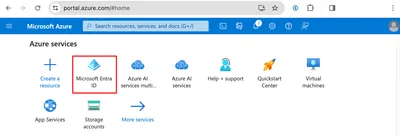
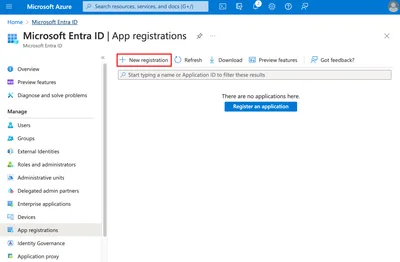
Log in to portal.azure.com, go to Microsoft Entra ID, and click New registration.
- Name your app: this name will be visible to your end users during the OAuth consent screen.
- Supported account types: select "Accounts in any organizational directory (Any Microsoft Entra ID, Multitenant) and personal Microsoft accounts" to support both business and personal Office 365 accounts.
Add Redirect URIs
Go to the Authentication panel and click Add URI under the Web section. Add 2 redirect URIs using your Unipile DSN (available in the Unipile Dashboard, top right):
https://{{YOUR_DSN_less_port}}/api/v1/hosted/microsoft_auth_request_callback/port{{YOUR_PORT}}
Configure API Permissions
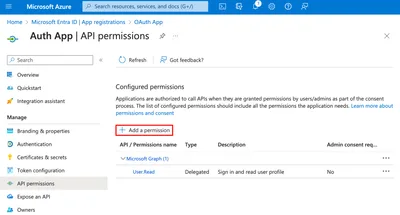
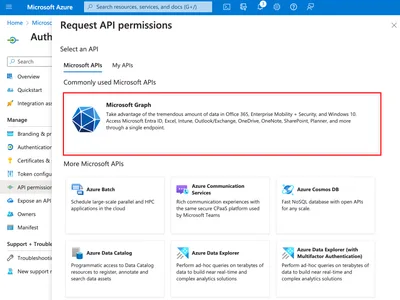
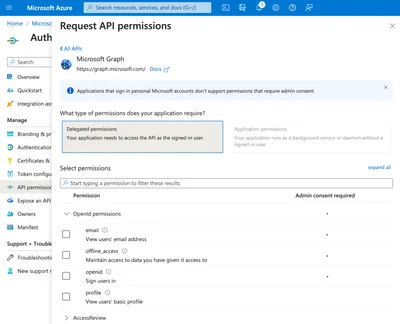
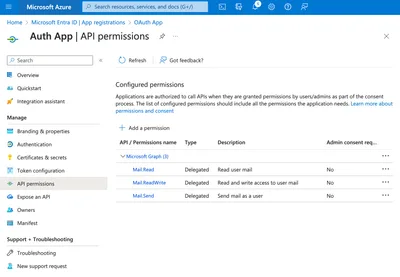
Go to API Permissions > Add a permission > Microsoft Graph, then add the following Delegated permissions:
For Calendar features, also add: Calendars.ReadWrite, Calendars.Read, Calendars.Read.Shared, Calendars.ReadWrite.Shared. Add them in your Unipile Dashboard scopes settings too.
Create a Client Secret
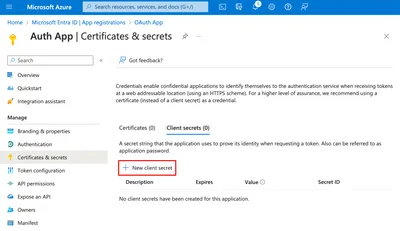
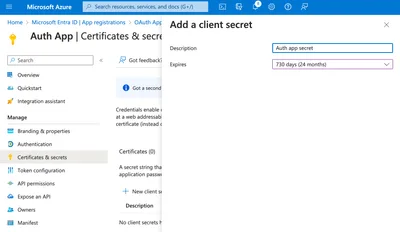
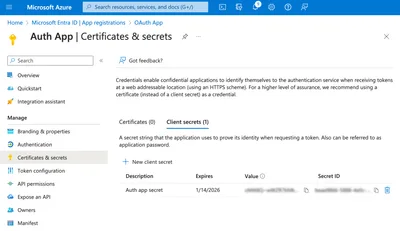
Go to Certificates & secrets, click New client secret. Name the secret and set an expiration of 730 days (24 months), then click "Add".
Connect to Unipile Dashboard
Go to the Unipile Dashboard, navigate to Settings > Microsoft OAuth.
- Copy-paste the Application (Client) ID from the Azure Overview page.
- Paste the secret value from the Certificates & secrets page.
- Click Save.
Test the Connection
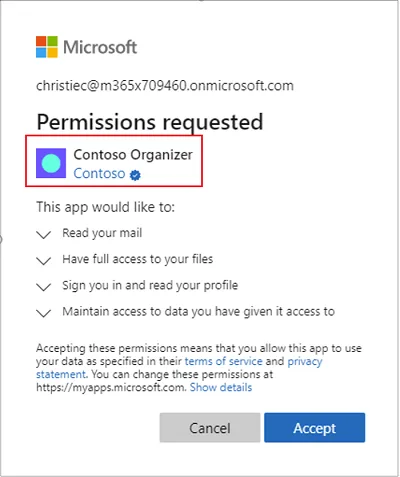
From the Unipile Dashboard, trigger a new Microsoft account link to verify that your custom OAuth credentials work properly. You should see your app name and branding in the Microsoft consent prompt instead of Unipile's defaults.
8
Become a Verified Publisher
Recommended for production, removes the "unverified" warning in the consent screen
With verification, a blue checkmark appears in the consent prompt. Without it, professional accounts may see an "unverified publisher" warning.
Step 1: Join the Microsoft Partner Network
- Sign up at partner.microsoft.com and choose Microsoft AI Cloud Partner Program.
- If you need a work account, create a new tenant first.
Step 2: Verify your domain
Create a file named microsoft-identity-association.json and host it at:
Step 3: Link your Partner Global Account (PGA) ID
- Find your PGA ID via Partner Center.
- In Azure Portal, go to App Registrations > Your App > Branding & properties, enter the PGA ID, and save.
For full details, see the Microsoft Publisher Verification documentation.
9
Handling "Administrator Approval Required"
When end users see a consent block from their IT admin
If a user sees "Administrator approval required", the required consent has not been granted at the tenant level. Two methods to resolve this:
Method 1: Admin Consent Request in Microsoft Entra
A Microsoft administrator must review and approve the pending admin consent request. See the Microsoft documentation on reviewing admin consent requests.
Method 2: OAuth login as admin with tenant-wide consent
- The admin starts the OAuth login flow from your app.
- During Microsoft authorization, the admin must tick: "Consent on behalf of your organization".
- This grants consent for all users in the organization and prevents the prompt for future users.
Full details in the Microsoft consent troubleshooting guide.
Microsoft Graph API Email Use Cases
The microsoft graph api email endpoint powers a wide range of SaaS applications that rely on Outlook and Exchange mailboxes. These are the three most common integration patterns used by teams building on the Graph API today.
Sync Outlook email threads and contacts directly into your CRM. Match senders to existing deal records, log every conversation automatically, and surface relationship history without any manual copy-paste from Outlook.
Email API GuideTrack candidate email threads across Outlook mailboxes. Parse incoming application emails, extract attachments, and route them to the right job pipeline - all via the microsoft graph api email endpoint with zero manual intervention.
Send Email APIConvert incoming Outlook emails into support tickets. Use Graph webhooks to receive real-time new-email events, classify by subject or sender domain, and route to the right team queue - replacing manual triage with automated logic.
Unified Email APIKey Features of Microsoft Graph API Email
The Microsoft Graph API for email exposes a comprehensive set of capabilities well beyond basic send and receive. Here are the six most important features every developer should know before building on the Microsoft Graph API email stack.
Fetch individual messages or paginated lists. Send new emails or reply inline. Move messages between folders or mark as read/unread.
GET /v1.0/me/messagesUpload, download, and list file attachments on any message. Supports inline (embedded) attachments and large file uploads via upload sessions for files over 3 MB.
GET /v1.0/me/messages/{id}/attachmentsCreate, rename, and delete mail folders. List all mailFolders, move messages between them, and manage child folder hierarchies, identical to what users see in Outlook.
GET /v1.0/me/mailFoldersUse OData query parameters ($filter, $search, $orderby) to find emails by sender, subject, date range, or keyword. Supports KQL for advanced full-text search.
GET /me/messages?$search="project"Subscribe to change notifications for mailbox events. Receive near real-time HTTP POST callbacks when new emails arrive, messages are read, or folders change.
POST /v1.0/subscriptionsCombine up to 20 individual Graph API requests into a single HTTP call using the $batch endpoint. Dramatically reduces round-trips for operations like bulk email reads.
POST /v1.0/$batchHow to Send, Read & Sync Emails with Microsoft Graph API
Three production-ready patterns covering the core operations every developer needs: sending email, reading messages with filters, and incremental delta sync for real-time mailbox monitoring.
import requests

# Unipile Unified Email API

# Sends via Microsoft Graph — no direct OAuth required

BASE = "https://api.unipile.com:13465/api/v1"

HEADERS = {

    "X-API-KEY": "YOUR_ACCESS_TOKEN",

    "Content-Type": "application/json"

}


def send_outlook_email(account_id, to, subject, body):

    payload = {

        "account_id": account_id,

        "to": [{"identifier": to}],

        "subject": subject,

        "body": body

    }

    r = requests.post(f"{BASE}/emails", headers=HEADERS, json=payload)

    return r.json()


# Example usage

send_outlook_email(

    "acc_outlook_123",

    to="recipient@company.com",

    subject="Meeting follow-up",

    body="Hi, following up on our call..."

)POST https://graph.microsoft.com/v1.0/me/sendMail with message.toRecipients, message.subject, and message.body.content. Unipile abstracts the OAuth token refresh and MIME handling. See the Send Email API guide for attachment support and reply-threading.
import requests

# Read Outlook emails with filters via Unipile

BASE = "https://api.unipile.com:13465/api/v1"

HEADERS = {"X-API-KEY": "YOUR_ACCESS_TOKEN"}


def list_outlook_emails(account_id, sender_filter=None, limit=20):

    params = {

        "account_id": account_id,

        "limit": limit

    }

    if sender_filter:

        # Maps to $filter=from/emailAddress/address eq '...'

        params["from"] = sender_filter

    r = requests.get(f"{BASE}/emails", headers=HEADERS, params=params)

    return r.json().get("items", [])


# Fetch last 20 emails from a specific sender

emails = list_outlook_emails("acc_outlook_123", sender_filter="hr@acme.com")

for e in emails:

print(e["subject"], e["from"], e["date"])$filter, $search, $select, $orderby, $top. Use $search="subject:invoice" for KQL full-text search. Attachments over 3MB require an upload session (POST /createUploadSession) — not a single multipart request.
import requests

# Delta Sync — only fetch emails NEW since last sync

# Unipile handles the deltaToken lifecycle automatically

BASE = "https://api.unipile.com:13465/api/v1"

HEADERS = {"X-API-KEY": "YOUR_ACCESS_TOKEN"}


def sync_new_emails(account_id, cursor=None):

    """

    Returns only emails received since last call.

    cursor = opaque pagination token (store between calls).

    """

    params = {"account_id": account_id}

    if cursor:

        params["cursor"] = cursor

    r = requests.get(f"{BASE}/emails/sync", headers=HEADERS, params=params)

    data = r.json()

    return data.get("items", []), data.get("cursor")


# First sync — no cursor

emails, next_cursor = sync_new_emails("acc_outlook_123")

# Store next_cursor in your DB, use it for subsequent calls

print(f"{len(emails)} new emails — next cursor saved")GET /me/mailFolders/inbox/messages/delta returns a @odata.deltaLink on the first call. Store it and use it next time — Graph returns only the diff. No polling full mailbox = 10x fewer API calls vs standard GET /messages. Unipile's /emails/sync endpoint wraps this pattern with automatic token management.
Microsoft Graph API Webhooks for Email Events
Microsoft Graph subscriptions (webhooks) let your server receive HTTP POST notifications the moment an email arrives, is read, moved, or deleted. Below is a complete Python example for subscribing to Inbox events, plus details on lifecycle management.
A Graph webhook subscription has two required fields: changeType (what events to watch) and notificationUrl (your HTTPS endpoint). Microsoft sends a validationToken query parameter on first subscription. Your endpoint must echo it back as plain text within 10 seconds to confirm ownership.
Graph subscriptions expire after a maximum of 4230 minutes (~3 days) for mail resources. Your server must renew before expiry via PATCH /v1.0/subscriptions/{id} or you will stop receiving notifications silently.
Lifecycle Notifications
lifecycleNotificationUrl when a subscription is about to expire or has been revoked. Your server must respond with HTTP 202 to acknowledge. Failure to respond causes subscription termination.validationToken Handshake
?validationToken=XXX. You must return the token as plain text (Content-Type: text/plain) with HTTP 200 within 10 seconds. Timeout means subscription creation fails.Subscription Expiration
expirationDateTime before it lapses. You can also re-create a subscription from scratch. Microsoft does not charge extra for renewals.import requests, datetime
ACCESS_TOKEN = "YOUR_GRAPH_TOKEN"
ENDPOINT = "https://graph.microsoft.com/v1.0/subscriptions"
# Expiry: max 4230 min from now for mail resources
expiry = (
datetime.datetime.utcnow()
+ datetime.timedelta(minutes=4200)
).isoformat() + "Z"
payload = {
"changeType": "created",
"notificationUrl": "https://yourdomain.com/webhook",
"resource": "me/mailFolders('Inbox')/messages",
"expirationDateTime": expiry,
"clientState": "mySecretState"
}
r = requests.post(
ENDPOINT,
json=payload,
headers={
"Authorization": f"Bearer {ACCESS_TOKEN}",
"Content-Type": "application/json"
}
)
print(r.json()["id"])
# sub_xxxxxxxx-xxxx-xxxx-xxxxSkip the Complexity - Use Unipile's Unified Email API
Connect Microsoft Graph, Gmail, and IMAP with one SDK. No per-provider OAuth flows, no token refresh logic, no webhook infrastructure to maintain. Your team ships email features in days, not weeks.
Start for FreeNo credit card required. SOC 2 Type II compliant.
Microsoft Graph API Rate Limits and Error Handling
The microsoft graph api email endpoint applies throttling at multiple levels: per user, per application, and per tenant. Understanding these limits before you go to production prevents silent failures and degraded reliability in your integration.
When throttled, Microsoft Graph returns HTTP 429 Too Many Requests with a Retry-After header specifying seconds to wait. Always read this header and back off accordingly - hammering after a 429 will extend the throttle window, not shorten it.
| HTTP Code | Error name | Cause | Fix |
|---|---|---|---|
| 429 | TooManyRequests | Rate limit exceeded (10,000 req / 10 min per app or 1,000 req / 1 min per user) | Read Retry-After header. Implement exponential backoff. Use $batch to combine requests. |
| 401 | Unauthorized | Access token expired or missing Authorization header | Refresh token via MSAL. Check token expiry before each request. Use token caching. |
| 403 | Forbidden | Missing Mail.Read or Mail.Send permission in Azure App Registration | Add required Graph permissions in Azure Portal and re-consent (or admin-consent for app permissions). |
| 404 | ResourceNotFound | Message ID or folder ID does not exist (deleted or wrong tenant) | Verify IDs via GET before acting on them. Handle 404 gracefully as a soft delete signal. |
| 500 | InternalServerError | Transient Microsoft server error | Retry with exponential backoff (1s, 2s, 4s). Log the request-id header for Microsoft support. |
Beyond Microsoft Graph: Unified Email API for Gmail, Outlook and IMAP
Managing the microsoft graph api email integration is only the beginning. Most SaaS products need to support Gmail, Outlook, and IMAP simultaneously - meaning three separate OAuth flows, three token refresh loops, and three webhook systems. Unipile's unified email API abstracts all three providers behind a single endpoint.
Gmail API
Microsoft Graph
IMAP / SMTP
With Unipile's unified email API integration, you write one integration and instantly support all three provider types. Linked accounts are managed by Unipile - your backend only talks to one REST endpoint regardless of whether the user's mailbox runs on Microsoft Graph, Gmail, or IMAP.
No OAuth flows to manage - Unipile handles token acquisition, refresh, and revocation for Microsoft Graph and Gmail on your behalf.
Unified webhook events - one notificationUrl receives email events from all providers with a normalized JSON schema. No per-provider subscription management.
SOC 2 Type II compliant - all email data in transit is encrypted. Unipile does not store email content beyond what your integration requires.
Start Integrating Microsoft Graph Email in Minutes
Join 200+ SaaS teams using Unipile to connect Outlook, Gmail, and IMAP under a single API. No vendor lock-in. SOC 2 compliant.
Frequently Asked Questions
Everything developers ask before building on the microsoft graph api email endpoint - from authentication to rate limits to provider coverage.
https://graph.microsoft.com/v1.0/me/messages and uses OAuth 2.0 authentication via Azure Active Directory. It supports reading, sending, searching, and managing emails, as well as receiving real-time change notifications via webhook subscriptions./v1.0/subscriptions with a changeType (e.g., "created"), a notificationUrl pointing to your HTTPS endpoint, and a resource (e.g., "me/mailFolders('Inbox')/messages"). Microsoft immediately sends a GET request with a validationToken - your server must echo it back as plain text within 10 seconds. Subscriptions expire after 4230 minutes maximum and must be renewed via PATCH before expiry.